

Upsells for Shopify.
Larger size, fuller version, premium model: offer a better alternative at the moment of choice, without the hard sell.
Back to home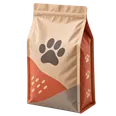
Which one do you prefer?
Save 10%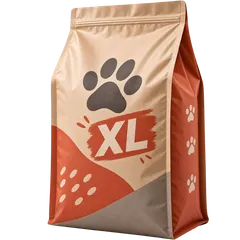
- Lower price per kg
- Bigger bag, fewer reorders
- Less packaging to throw away
Demonstration: nothing can be bought from this page.
A real Shopify store. Opens in a new tab. Password: 123456
One better choice, side by side.
For your store
- Feature a higher-end model or a premium version on the product page, in place of the one being viewed.
- Add a discount if you wish, and limit how many units get it.
- When you pick the product, Hokku shows how much more it costs than the one on the page.
- One buy button at a time: the block takes over only while your recommendation is selected.
For your customers
- Two choices side by side, with the price difference and your selling points in view.
- The product they came for stays selected: the recommendation is offered, never imposed.
- Already in their cart? The button says “Replace with …”: the upgrade replaces, it doesn't stack.
- The variant and quantity they set on the page are what goes into the cart.
How it works
Propose a more complete version in place of the product being viewed.
What the customer sees
on the product page, a question, “Which one do you prefer?”, then two choices side by side: the product they are looking at, at its price, or your recommendation. That one shows the price difference (“only +€20”), its thumbnail and your selling points beside it. An “Add to cart” button closes the deal. If the page's product is already in their cart and your customer chooses your recommendation, the button becomes “Replace with …” and a line announces the removal: the upsell replaces, it doesn't stack.
The benchmark we give you
when you pick the product to feature, we show how much more expensive it is than the one on the page. Beyond roughly 25%, many customers give up on trading up. It's a benchmark, not a limit.
When to use it
to steer toward a higher-end model or a premium version.
The page's product goes in exactly as your customer set it.
If they pick another size or color with your page's selectors, the price shown in the block follows, and that variant is the one added to the cart. When your page has its own quantity selector, the block doesn't show its own: there is only one quantity on the page, your theme's, and that is the one added, for the product being viewed as well as for your recommendation. The block's button shows it with the price: “Add to cart (3 × €65.00)”. If your theme has no quantity selector, the block keeps its own. If you limited the number of discounted units and your customer takes more, the button no longer shows an amount, and a line says how many units get the discount (“2 of 3 at the discounted price.”).
The product they're viewing is selected by default.
Your recommendation costs more: pre-selecting it would mean inflating the cart before your customer has asked for anything, which App Store rules forbid. It's offered, never imposed.
With your recommendation selected, the block does the buying.
As long as your customer has selected your recommendation, your theme's add-to-cart button and its accelerated checkout buttons disappear: they would buy the page's product, not the one they chose. The block's button then takes on the look of your theme's. If they go back to the product they're viewing, everything reappears, and it's the block's button that steps aside: it would buy the same thing as your theme's. Only one buy button at a time on the page.
You configure
the product to highlight (a single one) and, if you wish, a discount, with the option to limit the number of discounted units (all of them, only the first, or up to a number you set; beyond that, the normal price applies).
Only certain variants
when you choose the page's product, uncheck the variants your recommendation shouldn't appear on. See “Reserve an offer for certain variants”, below.
If you sell in several currencies
an amount discount is converted at the day's rate into the currency of each of your markets. To set a round amount yourself, open “Amounts per market” under the discount and enter it currency by currency. A field left empty stays converted automatically, as does a currency added after publishing.
This text comes from the merchant guide inside the app, not from a version written for this site. It follows the app when the app changes.
The other mechanics
- Fixed bundlesSell multiple products in a single offer.
- Build-your-own bundle (Mix & Match)Your customers pick the products in their bundle from your selection, at a reduced price.
- Cross-sellRecommend relevant products at the right moment.
- Volume discountTiered pricing that rewards bulk purchases.
- Buy one, get one (BOGO)The classic: buy one, get one of the same item free by default, quantities adjustable.
- Buy X, get YYou set the quantities: buy 2, get 1 free or at a reduced price.
- Free giftGive a gift once the cart reaches a set amount, a specific product is bought, or the cart holds a set number of items.
- Free shippingEncourage customers to add an item to unlock free shipping.
Pro plan and up
- FunnelThree moments before checkout, and what follows depends on the answer.
- A/B testsTest two versions of an offer and keep the one that earns the most.