


To increase average order value (AOV) on Shopify, give customers a clear reason to add one more item, and show it where they decide: on the product page and across the store. Six offers do it: a bundle, a free-shipping bar, a free gift, quantity tiers, an upgrade and an add-on.
A discount the customer never sees does not raise AOV. On Shopify Basic, most of these discounts exist, but they stay invisible until the cart, and a free gift is never added on its own. Hokku shows each offer on the page, in the theme you already use.
This guide covers each offer: where Shopify Basic stops, what Hokku does instead, and how to set the offer up without losing margin.
How to Check Your AOV in Shopify
Average order value is the average amount a customer spends per order.
AOV = (gross sales − discounts) ÷ number of orders
A store with $10,000 in sales over 200 orders has a $50 AOV.
To read it in your admin:
- Go to Analytics > Reports.
- Filter by Category: Sales.
- Open Average order value over time.
The figure on your Shopify home page includes taxes and shipping, so it will not match the report. Use the report as your baseline, and note the number before you change anything.
Why it matters: with the same traffic and the same conversion rate, revenue moves with AOV. At 10,000 visitors and 2% conversion, a $50 AOV gives $10,000. At $65, the same visitors give $13,000. That gain only counts if the offers that produced it keep your margin.
1. Product Bundles
A bundle sells several products together for less than the sum of their prices. It works best when the items are used together: a cleanser, a serum and a cream, or a camera, a strap and a memory card.
Where Shopify Basic stops: the free Shopify Bundles app creates fixed bundles, but the bundle lives on a product page of its own. Nothing on the page of a single item tells the customer the bundle exists. And the app “doesn’t support mix-and-match bundles”, in Shopify’s own words.
What Hokku does:
- Hokku creates a native Shopify bundle for you and shows it on the product pages of the items it contains (all of them, or the ones you pick): the item alone, or the bundle, side by side. The item alone stays selected by default.
- If you allow it, the customer picks the variant of each product inside the bundle.
- The discount can be a percentage, an amount off or a fixed price, with prices set per market.
- From the Starter plan, customers can also build their own pack from your selection, on a page you add to your menu, on the pack’s own product page, or both. With tiered pricing, the pack tells them how many more items unlock the next discount as they pick.
How to set it up well:
- Start from your best seller and add the item customers most often need with it.
- Show the saving in dollars, not only as a percentage: $79.05 instead of $93.00.
- Keep one bundle per product page. Three bundles on one page bring the choice back to the customer.
2. Free-Shipping Bar
A free-shipping threshold gives customers a reason to add one more item instead of paying for delivery.
Where Shopify Basic stops: you can set free shipping above an order amount, in Settings > Shipping and delivery. But customers only learn about it at checkout, or from a line of text you write yourself. Shopify’s free Dawn and Horizon themes include no progress bar.
What Hokku does: once the Hokku embed is enabled in your theme, a bar shows how much is left to spend for free shipping on every page, product page and cart included, and updates as the cart changes. Nothing shows at checkout. The bar follows your own Shopify shipping rule. Hokku never changes your shipping rates.
How to set it up well:
- Set the threshold above your current AOV. If your AOV is $50 and the threshold is $45, most orders already qualify and nothing changes.
- Check what one order costs you to ship. Free shipping on an order that barely clears the threshold comes out of your margin.
- Say the distance left in plain words: “Spend $12 more for free shipping.”
3. Free Gift
A free gift works like a free-shipping threshold, with a product instead of a delivery fee: “Spend $60, get the travel-size cream free.”
Where Shopify Basic stops: you can build the discount with a Buy X get Y, but Shopify’s help center is explicit: “The free or discounted ‘get’ item is never automatically added to the cart.” The customer has to find the gift and add it. A customer who misses it never gets the gift.
What Hokku does:
- The gift is added to the cart when the customer qualifies, and taken out if they no longer do.
- If the customer removes the gift, Hokku does not force it back.
- The gift can unlock on the cart amount, on specific products, or on the number of items.
- When the gift unlocks on the cart amount, a bar shows how much is left, on every page once the Hokku embed is enabled in your theme. Nothing shows at checkout.
- From the Starter plan, you can set up to 3 tiers, shown as one row of milestones, and one of them can be free shipping instead of a gift.
How to set it up well:
- Pick a gift that costs you little and is useful with your best sellers.
- Set the amount just above your current AOV, as with free shipping.
- Tell customers the gift exists before they reach the cart.
4. Quantity Tiers
Quantity tiers lower the unit price as the quantity goes up: 2 for 10% off, 3 for 15% off. They suit products people use up or buy for several people: socks, coffee, candles, supplements.
Where Shopify Basic stops: for retail customers, each discount holds one minimum quantity, so each tier is a separate discount. None of them shows on the product page: a customer who never adds a second unit never learns the discount exists. Quantity price breaks exist natively in Shopify B2B, for wholesale catalogs only.
What Hokku does:
- Up to 5 tiers in a single offer, shown on the product page.
- Each tier can show the struck-through price, the price per unit and a discount badge.
- In the card layout, a click on a tier sets the quantity in your theme’s own field, and your add-to-cart button does the rest. When a tier mixes variants or includes a gift, Hokku’s own button adds it all.
- Before you publish, a “Check my margin” panel shows, tier by tier, the price per unit and what you keep. It uses Shopify’s “Cost per item”, or the cost you type.
Choose your pack
 Reusable cotton padsFree
Demonstration: nothing can be bought from this page.
Example: a Hokku volume discount, with the saving shown on each tier.
How to set it up well:
- Work out the margin of each tier before you publish it. At 20% off, a product with a 40% margin keeps half its profit per unit.
- Two or three tiers are enough.
- Show the saving of each tier next to the quantity.
5. Upgrade to a Better Version
An upgrade (an upsell) offers a better version of the product the customer is looking at: the larger size, the premium fabric, the model with more storage.
Where Shopify Basic stops: there is no upgrade offer. The free Search & Discovery app can show related products, which are similar items, with no discount and no swap. The customer has to compare the two pages on their own.
What Hokku does: on the product page, Hokku offers the better version, with an optional discount. One click swaps the product. Nothing changes without that click.
Which one do you prefer?
Save 10%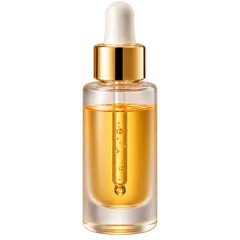
- 100 ml: more than triple the standard
- Enough for a full treatment cycle
- Glass bottle with gold dropper
Demonstration: nothing can be bought from this page.
Example: a Hokku upsell offering the larger size.
How to set it up well:
- Offer one upgrade per product, not three.
- Say what is better in one line: “Twice the capacity, $15 more.”
- Keep the price gap small compared to the product price.
6. Add-Ons
An add-on (a cross-sell) completes the purchase: insoles with running shoes, a case with a phone, a refill with a bottle.
Where Shopify Basic stops: Search & Discovery can show complementary products on the product page, if your theme supports the block. It is a list of products, with no discount and no way to add them together.
What Hokku does:
- Up to 4 add-ons on the product page, under a simple question by default: “Anything to go with it?”
- The boxes are unticked by default. The customer ticks what they want, and one click adds them to the cart together with the product on the page.
- Each add-on can carry its own discount.
Anything to go with it?
Total: $0.00
Demonstration: nothing can be bought from this page.
Example: a Hokku cross-sell with optional add-ons.
How to set it up well:
- Choose the items yourself. A customer buying shoes wants socks, not another pair of shoes.
- Keep the list short: two or three items.
- Do not label your choice as “frequently bought together” unless it comes from your real orders.
Protect Your Margin Before You Grow AOV
Every offer above costs you something: a discount, a gift, a shipping fee. A higher AOV with a lower profit per order is not progress.
Before you publish an offer, write down three numbers:
- Your current AOV, from the report above.
- Your margin per order at that AOV.
- Your margin per order if the offer is used at its maximum.
If the third number is lower than the second, change the offer before it goes live.
Test, Then Keep What Works
On Shopify Basic, there is no native A/B test for discounts: Shopify’s Experiments start on the Grow plan. From Hokku’s Pro plan, you can A/B test bundles, quantity tiers, upgrades, add-ons and Buy X get Y offers, and compare margin per visitor, or revenue per visitor when your product costs aren’t set. Hokku recommends a version; you decide which one to keep.
One Offer per Decision
The more offers a page shows, the harder the choice becomes. Many stores also install one app per offer, and each app adds its own code to the storefront. Hokku puts these offers in one app.
A solid start for most stores:
- one bundle on your best seller;
- one free-shipping bar;
- one upgrade or a few add-ons.
Measure AOV after four weeks, then add the next offer. The Hokku manifesto sets out how we build the app, the pricing page lists what each plan includes, and the FAQ covers the questions merchants ask before installing.